
Let’s begin at the beginning.
As we’ve already covered, computers store all data as binary, this includes images.
At GCSE we need to understand how computers store Bitmap images, a type of image where each piece (aka a pixel – see below) is stored as a binary number.
So what is a pixel?
Starting with the definition, a pixel is the smallest element of a bitmap image.
Each pixel is a representation of a binary number consisting of 1, 2, 3 or more bits.
Fig 1 below shows a bitmap image with each pixel (the small squares – just don’t call them that in exams) having a single bit, 0 or 1, as its binary value.
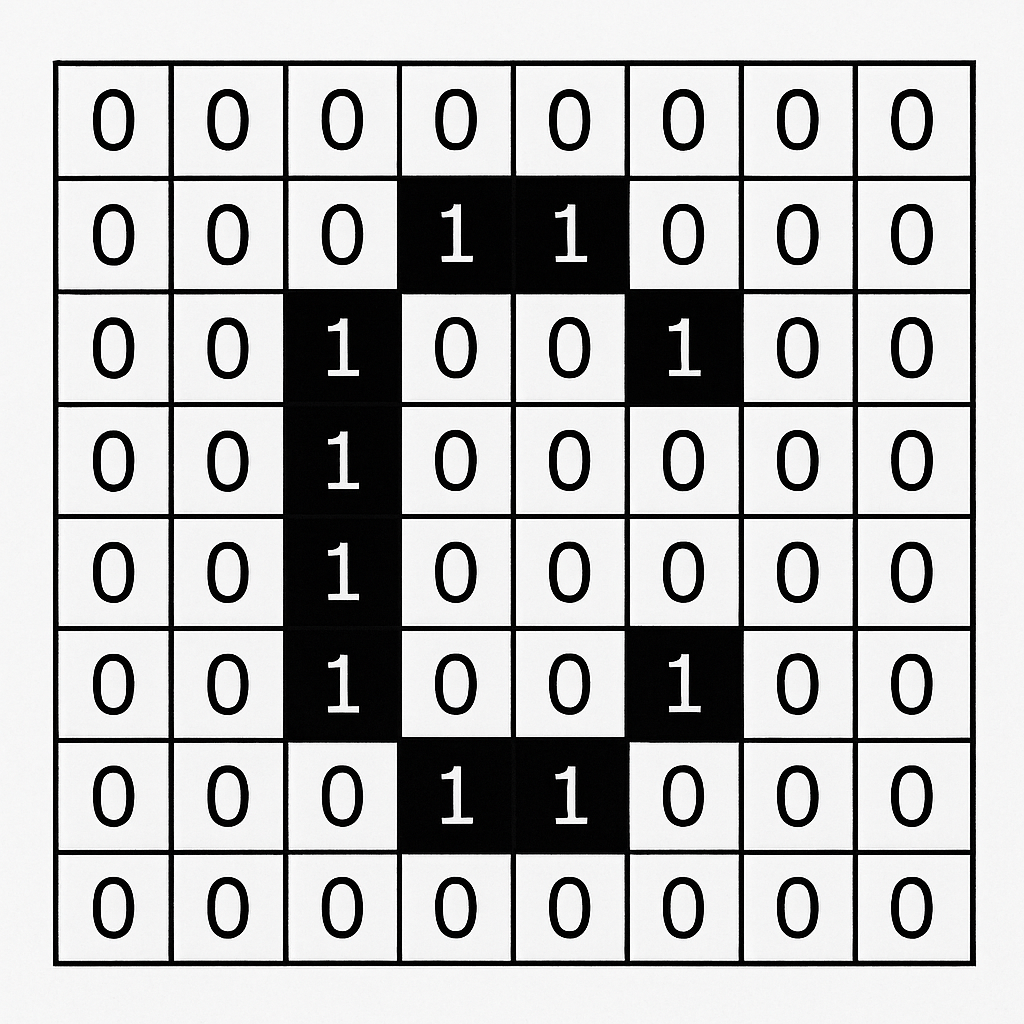
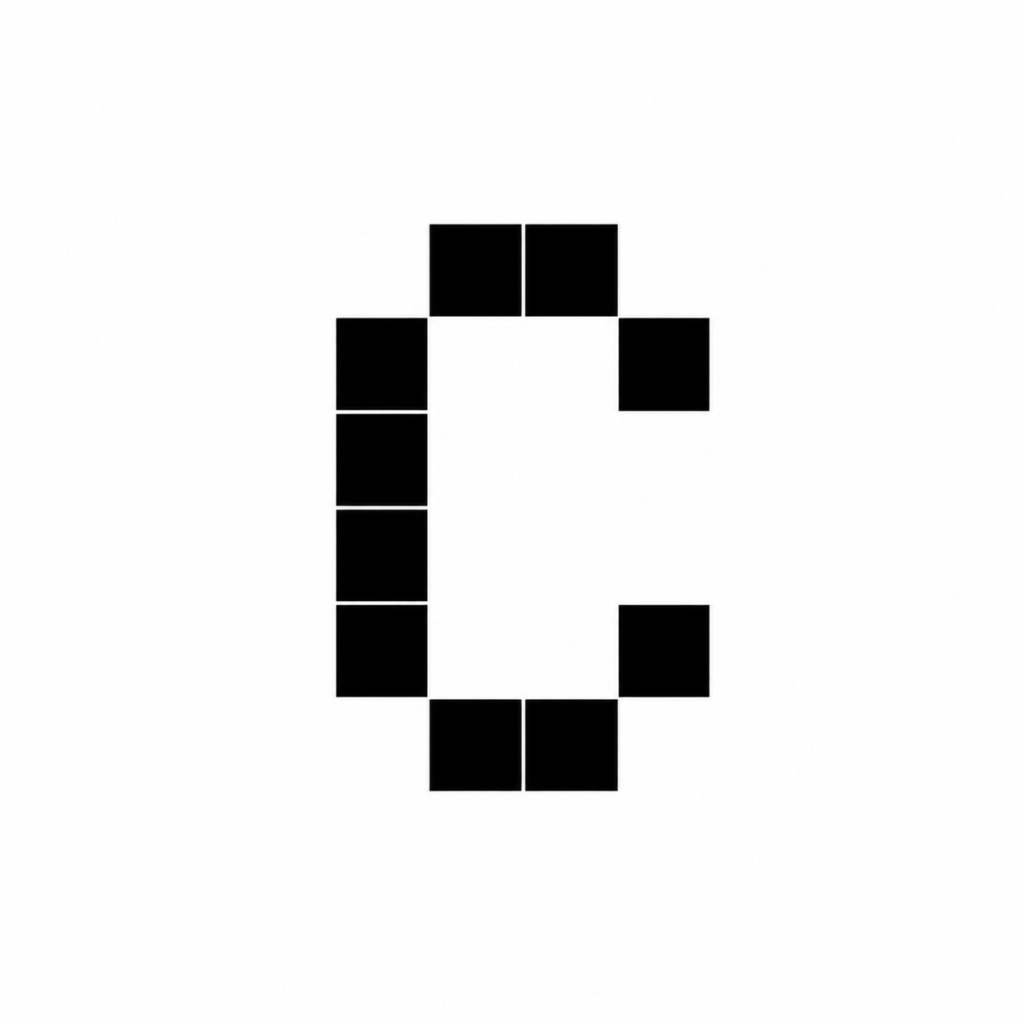
fig 1 – An under-the-hood look at a bitmap image
fig 2 – how it would be shown on the screen
In this case, each pixel can only represent the colours black ( 1 ) or white ( 0 ). Fig 2 shows how the computer would interpret the file and actually show it on your screen.
Normally you can’t see the individual pixels in an image as modern cameras and screens squeeze a great deal of pixels into a small area, meaning each pixel is incredibly small. By doing that it allows us to take very detailed selfies, pictures of food, or watch ultra-high-definition movies.
So what is a bitmap?
We’ve partly explained this above, it’s an image which is stored and represented by binary values, with each binary value representing the colour of a single pixel in the bitmap.
The name bitmap tells us something about how it works too. The images are made of bits, and these bits are mapped to a certain area of the image and represents a colour in that area. Take for example fig 1 above, on row 2, the bits are mapped as 0 0 0 1 1 0 0 0. This is their position in the image as they have to be there to show the top line of the letter c.
In a selfie, the bits mapped on your photo will represent the different colours required to make up your skin tone, and they have to be in the right place – where the camera’s sensors detected them – in order to represent you!
A bitmap will typically consist of many, many pixels.
A bitmap will have 3 properties:
- Height – How many pixels high
- Width – How many pixels wide
- Colour Depth – How many bits are used per pixel (see the colour depth section below)

Believe it or not, but both images above are bitmaps.
They work in exactly the same way. However, the image of the macaw on the right has a higher resolution. This means it has more pixels per height and width than the image on the left. As we’re forcing more pixels into the same area, the pixels are smaller, this allows for a more detailed image to be created.
So a higher resolution (height x width) means a more detailed image, because it has more pixels.
What else could it mean? Have a think, and we’ll answer this later.
So what is colour depth?
As we’ve mentioned in the above sections, each pixel is stored as a binary value. How many bits are used per pixel is called the colour depth, and it dictates how many colours a bitmap can represent.
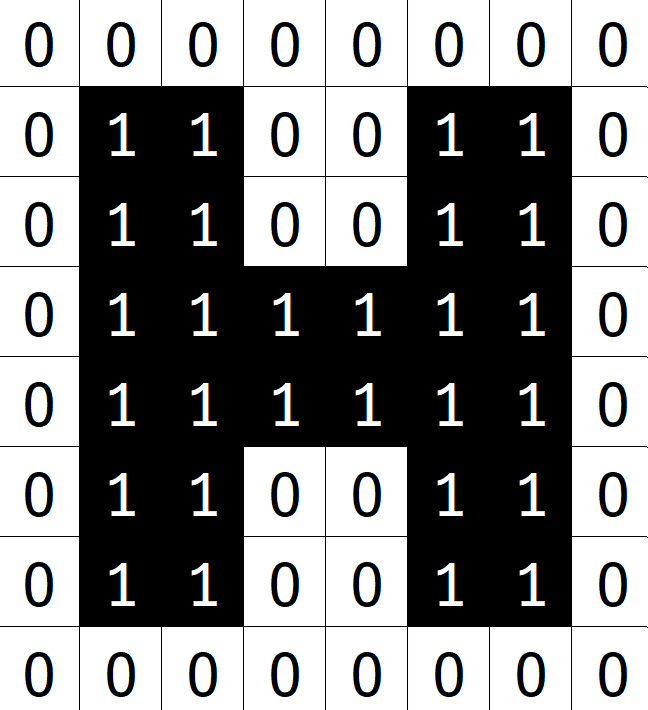
Fig 4 above, this bitmap image has a colour depth of 1, as it’s using 1-bit per pixel.
This means it can only represent 2 colours.
0 = White
1 = Black
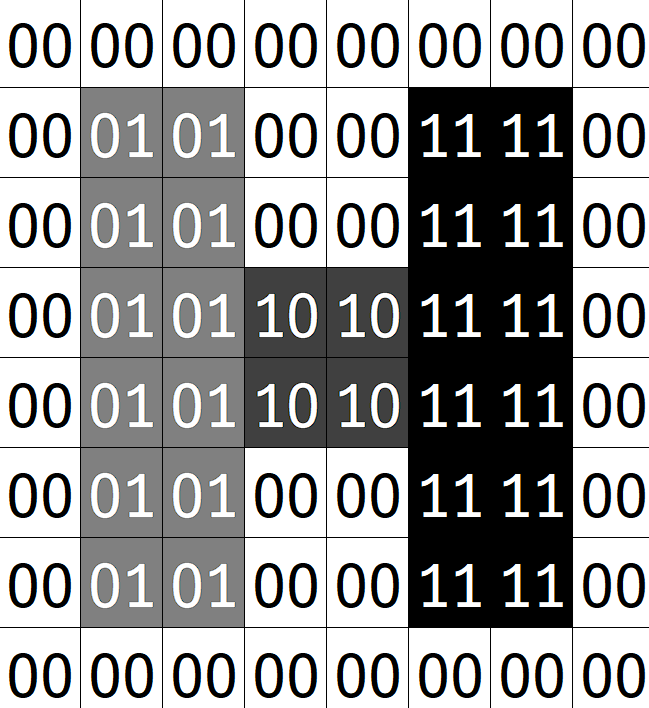
Fig 5 above, this bitmap image has a colour depth of 2, as it’s using 2-bits per pixel.
This means it can represent 4 colours.
00 = White
01 = Light Grey
10 = Dark Grey
11 = Black
Challenge Question: Before I show you how, how many colours do you think a bitmap using 3-bits per pixel can show?
I’ll now show you how to calculate how many colours a colour depth can represent, or how many bits you need to represent a number of colours.
Colour Depth Colours Calculation
Let’s start with a number line to help us first.

Looking at the number line above, we can see that if we have a colour depth of 1-bit, then what that mean is we can represent 21 colours, or 2 colours. We’ve proven above already. It’s 21 because the 2 represent binary (1 or 0) and the power is the bits used for the images colour depth.
That means, if we had a colour depth of 3-bits, then it would mean we can represent 23 colours, or 2 x 2 x 2 colours, or finally, 8 colours.
For example, these are the 8 unique bit combinations that we can we make using only 3 bits, therefore we can only represent 8 unique colours.
000
001
010
100
101
110
011
111
File Size Section
Binary to Bitmap Section
Question Generator Section